Cast to TV+ Chromecast Roku TV
- 4.6
- Rating
- 10.00M
- Installs
- Free
- Price

 Analysis by App-foxy
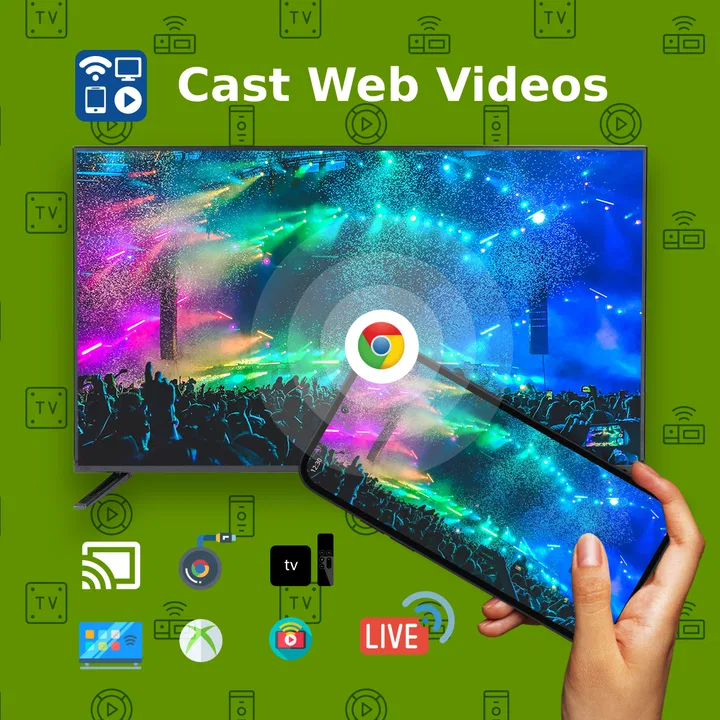
I tested Cast to TV+ Chromecast Roku TV as a shared-screen tool rather than treating it like another video player. That distinction matters. The app, developed by Castify, is designed to move video from a web browser or IPTV source to a television, Chromecast, Roku, DLNA device, Smart TV, and other compatible screens. In a home where several people use the same television, that can be more useful than downloading another streaming service.
My first impression was that its value depends less on watching content inside the phone and more on making the phone a practical remote starting point. I could browse for something, choose a compatible screen, and leave the smaller display behind. It is free to install, although optional in-app purchases range from ninety-nine cents to four dollars and ninety-nine cents per item. The app is rated Teen, so I would not hand it to a child without adult guidance simply because it can reach a large shared screen.
How it feels in a shared living room
The most convincing use case is an ordinary evening when the television is shared. One person may want a browser video, another may prefer an IPTV channel, and nobody wants to pass a laptop around or crowd around a phone. With this app, the person who finds the content can start playback on the television while everyone else watches from the sofa. That sounds simple, but it changes the social rhythm: the phone becomes a selection tool, not the screen everyone has to stare at.
You May Also Like

 Blood Strike: 2.5 Anniversary
Blood Strike’s Loadouts Turn Every Drop Into a Tactical Gamble
A close look at Blood Strike’s custom loadouts: how fast access to signature weapons reshapes its battle royale rhythm, rewards preparation, and narrows the gap between fights.

 Pandora - Music & Podcasts
Pandora’s Music Is Easy to Start, but Harder to Recover
Pandora’s strength is its low-effort path from a seed to a station. Its weak spot is how much confidence it asks you to place in connection, setup, and quiet recovery.

 8 Ball Pool
 Is Built on Rivalries, Rematches, and Routine
A close look at the rivalries, rematches, shared routines, and unanswered safety questions that turn a quick pool match into a persistent mobile community.

 Samsung Music
’s Quiet Strength Is Playing What You Already Own
Its reach comes less from spectacle than from dependable access to a personal library. That simplicity is both the app’s strongest retention engine and its ceiling.

 AccuWeather: Weather Radar
AccuWeather Review: A Quick, Clear Forecast for Everyday Decisions
For everyday plans, the best forecast is the one you can understand quickly. AccuWeather makes rain timing, radar, and local conditions easy to act on, with a few trade-offs.

 Hill Climb Racing
Why Hill Climb Racing Still Turns Crashes Into One More Run
A tiny car, a bumpy hill and one more upgrade: Hill Climb Racing keeps resurfacing because its simple chaos makes every near-miss feel personal.
More From Our News Desk



I found this especially practical when the content was easier to discover on the web than through a television interface. Typing, scrolling, and opening pages on a phone is usually quicker than searching with a TV remote. Once the right video is found, casting avoids the awkward compromise of mirroring a tiny display or balancing a laptop near the television.
There is also a useful division of responsibility in a household. The person who knows where a particular video or IPTV stream is located can start it, while the rest of the group does not need the same browsing habits. That makes the app a good fit for mixed households where one person is comfortable searching online and others simply want to watch on the big screen.
Still, I would not describe it as a universal replacement for every television app. A native streaming service is usually smoother when its catalog, subtitles, recommendations, and playback controls are already built for the television. Cast to TV+ Chromecast Roku TV is more interesting when the material begins in a browser or another source that the TV does not handle conveniently.
What the setup asks from you
The first practical question is not whether the app can cast, but whether the target device is ready to receive the connection. The app is aimed at Chromecast, Roku, DLNA equipment, Smart TVs, and additional compatible receivers, so the experience depends on the television or streaming device in the room. I would check the exact screen before planning a movie night, especially in a home with several televisions using different systems.
That variety is both a strength and a source of friction. A household may have a Chromecast in one room, a Roku in another, and a television with its own casting support elsewhere. Having one app that can act as the starting point across those rooms is convenient, but the available controls can feel different depending on the receiver. I would not assume that a function that feels natural on one device will behave identically on another.
My advice is to perform a short test with a harmless video before relying on the app for a group viewing session. Confirm that the intended television appears, that playback begins on the correct screen, and that the phone remains usable for navigation. This small check prevents the most common shared-device mistake: sending content to the bedroom television while everybody is waiting in the living room.
The app supports devices using different casting standards, but that does not mean every web page is equally suitable. A page may contain several media elements, advertising, a player that changes behavior after loading, or a stream that does not cooperate with remote playback. In those cases, the issue may feel like an app failure even though the source itself is the difficult part. I learned to judge the source and the receiver together instead of assuming that the casting button guarantees a perfect handoff.
Keeping control clear when several people share the TV
Shared screens create a coordination problem that store descriptions rarely mention. If several people have access to the same television, the person holding the phone may effectively control what appears next. That is useful when the group has agreed on a choice, but annoying when someone changes the video without warning. I recommend deciding who is responsible for starting and stopping playback before the viewing begins.
This is not a criticism of the app so much as a realistic consequence of phone-led casting. The phone is close at hand, so it is easy to browse ahead, switch sources, or accidentally choose a different receiver. In my home, a simple rule works better than trying to make everyone operate the app at once: one person searches, the group agrees, and that person keeps the casting session organized until the break.
For households with multiple adults, it is worth being deliberate about which phone starts the session. A guest may connect successfully and then leave the room, leaving everyone else unsure who can resume or stop the video. I would use the phone belonging to the person who is likely to stay available. That small choice makes the experience less confusing than passing control around after every clip.
Another practical tip is to separate discovery from playback. I like to browse several possibilities first, then cast the selected item instead of sending every preview to the television. This reduces interruptions and keeps the large screen from becoming a live search page. It also makes the app feel more like a shared queue tool, even though I would not assume that every source offers the same queue behavior.
Account boundaries and personal browsing
Because the app begins with web content and IPTV sources, I would think carefully about account boundaries. A phone used for casting may also contain personal browser tabs, saved logins, and recommendations shaped by one person’s habits. In a shared home, that makes the choice of device important. I prefer using my own phone rather than a communal tablet when browsing could reveal private information or open a page under the wrong account.
This also matters when a guest wants to cast. I would help the guest connect to the intended screen, then let them choose content on their own device where possible. That keeps personal browsing separate from the household television and avoids mixing one person’s history with another person’s account. The app is useful for shared viewing, but it should not be confused with a household account-management system.
I would also avoid assuming that casting makes the source private. The video appears on a shared display, so everyone in the room can see what has been selected. That is obvious for entertainment, but less obvious when someone is testing an unfamiliar browser page or an IPTV channel. A quick glance at the source and destination before pressing cast is a sensible habit.
For parents, the Teen content rating is a meaningful reminder to supervise use according to the family’s own rules. The app can send browser-based material to a large screen, so the source matters as much as the casting tool. I would not treat the rating as a promise that every item reachable through a browser or IPTV source is appropriate for younger viewers. An adult should choose the content and remain responsible for what appears in the room.
Age, trust, and the big-screen effect
The move from phone to television changes the impact of a mistake. An unsuitable page that might be closed quickly on a personal screen becomes visible to everyone when it is cast. That is why I see the app as best suited to trusted users who understand the difference between finding something online and presenting it to a household.
For teenagers, the app can be convenient for sharing a video with family or friends, but I would still set expectations around source selection and device choice. The Teen rating makes more sense here than a child-focused positioning would. It signals that the app belongs in a context where users can make sensible decisions about online video, not where every interaction is assumed to be filtered for children.
There is a positive side to this shared-screen responsibility. Casting can encourage people to talk about what they are watching instead of disappearing into individual phones. A family member can find a tutorial, a news clip, or a video that explains a hobby, then bring it into a group discussion. The app is at its best when the phone helps start a conversation and the television becomes the common reference point.
It is less suitable when everyone wants separate recommendations or private control. If each person is watching different material, a personal streaming app or individual device is more efficient. I would also favor a native TV application when the group needs dependable subtitles, a long-form catalog, or a polished remote-control experience. Cast to TV+ Chromecast Roku TV earns its place when flexibility matters more than a fully integrated television interface.
Everyday workflows that make it more useful
One workflow I found valuable was using the phone for research before casting. For example, if I wanted to show a repair guide or cooking demonstration, I could inspect the page first, skip irrelevant results, and send only the useful video to the television. This is more efficient than opening every result directly on the TV and hoping the remote can handle the page.
A second workflow is room-to-room flexibility. If a home has compatible receivers in different spaces, the same general casting approach can support a kitchen video while cooking, a living-room viewing session later, or a bedroom screen without learning a completely different browsing method each time. The trade-off is that I would verify the destination every time rather than trusting the last selected device.
A third is using IPTV as a supplement to ordinary television access. When a household already relies on IPTV sources, sending a channel or stream to a larger display can be more comfortable than watching on the phone. However, IPTV quality and reliability can vary by source, so I would not blame the app for every pause or failed stream. The app provides the route to the screen; it cannot turn an unstable source into a dependable one.
I also like the idea of keeping the phone free for the person who is coordinating the session. Rather than mirroring the entire display, casting can let the phone remain a browsing and control surface while the television shows the video. That is a better arrangement when someone needs to check the next item, respond to a message, or prepare another selection without putting all phone activity in front of the room.
Where the alternatives still have an advantage
Compared with screen mirroring, this app can be more comfortable when the goal is simply to play a video on a compatible TV. Mirroring shows the phone’s whole display, which can expose notifications, drain attention, and make the picture feel tied to the handset. Casting from a source is cleaner when the source and receiver cooperate properly.
Compared with a native streaming app, the advantage is breadth of starting points rather than polish. A native app usually wins for a service that already has a dedicated television experience. Search, playback, account switching, and subtitles are often designed around the remote. Cast to TV+ Chromecast Roku TV is more appealing when the desired content lives in a web browser, an IPTV source, or a place the TV’s own app selection does not cover.
Compared with a browser built into the television, the phone is generally easier for typing and browsing. That is the practical reason I would choose this app for occasional web video. The drawback is that the phone becomes part of the chain, so a low battery, a lost connection, or an accidental change of destination can interrupt the session.
In short, I would not install it expecting one perfect player for every format. I would install it as a bridge between flexible online discovery and a household’s larger screens. That is a narrower promise, but it is also the reason the app can be genuinely useful.
Performance expectations and version details
The current version is 12.291, and the app supports devices running Android 7.1 or later. That makes it approachable for people who are not using the newest phone, although the receiver and source remain just as important as the handset. Before troubleshooting, I would check all three points: the phone, the television or streaming device, and the page or IPTV stream being cast.
Castify’s app has reached more than ten million installs, with an average rating of 4.6 from roughly eighty-four thousand ratings and about six thousand eight hundred written reviews. Those figures suggest that the basic casting idea has broad appeal, but they should not be read as a guarantee that every household setup will be equally smooth. Casting is unusually dependent on the equipment and network arrangement around the app.
The free entry point is a strong reason to try it before committing to a different solution. I would begin with the tasks I actually need: finding a web video, selecting the correct receiver, and confirming that the television handles playback acceptably. If the free experience covers those needs, there is little reason to pay simply because optional purchases exist. If an in-app purchase becomes relevant, I would judge it by whether it removes a real annoyance in my own routine rather than treating it as necessary for basic experimentation.
The Teen rating also affects where I would place it in a household. It is suitable for a family environment when an adult or trusted older user manages the source, but I would not present it as an unsupervised children’s video solution. The app’s job is to cast content; the household still has to decide what content belongs on the shared screen.
My household verdict
After using it with shared-device habits in mind, I see Cast to TV+ Chromecast Roku TV as a practical connector rather than a complete entertainment ecosystem. I would recommend it to someone who regularly finds videos in a mobile browser, uses IPTV sources, or owns more than one compatible type of receiver and wants a common way to send content to the television.
I would be more cautious with someone who only watches major streaming services through a single smart TV. In that situation, the native television apps may be simpler, more stable, and better organized. I would also steer away from it for a household that expects strong child-oriented separation or fully independent profiles, because the app should not be treated as a substitute for those arrangements.
My favorite part is the way it lets one person do the fiddly searching while everyone watches together on the larger display. My main reservation is that the experience can change with the source and receiver, so a little preparation is worthwhile. The best results come from treating casting as a coordinated household activity, not as a magic replacement for every TV app.
For me, that balance makes Cast to TV+ Chromecast Roku TV worth trying. It is free to start, supports a wide range of casting destinations, and solves a very specific problem well: moving browser or IPTV video from a personal device into a shared viewing space. If that is the gap in your home, I would give it a test on the television you use most and judge it by that real routine.
FAQs for Cast to TV+ Chromecast Roku TV
01What devices are compatible with Cast to TV+ Chromecast Roku TV?
Cast to TV+ Chromecast Roku TV is compatible with most Android and iOS devices. It supports streaming to a range of devices, including Chromecast, Roku, and other DLNA-enabled devices. Make sure your device is connected to the same Wi-Fi network as your casting device for optimal performance.
02Is there a subscription fee for using Cast to TV+ Chromecast Roku TV?
The app is free to download and offers basic casting features at no cost. However, there may be premium features or an ad-free experience available through in-app purchases or a subscription plan. Check the app store for specific pricing and plan details.
03How do I set up Cast to TV+ Chromecast Roku TV with my TV?
Setting up Cast to TV+ Chromecast Roku TV is simple. First, ensure your smartphone and TV are on the same Wi-Fi network. Open the app, select the media you wish to cast, and choose your streaming device from the list. Follow any on-screen instructions to complete the connection.
04Can I cast any type of media using Cast to TV+ Chromecast Roku TV?
The app supports a wide range of media formats, including videos, photos, and music. However, some DRM-protected content may not be supported. It’s recommended to check the app’s compatibility with specific file types or streaming services you intend to use.
05What should I do if Cast to TV+ Chromecast Roku TV is not connecting to my device?
If you're experiencing connection issues, ensure both devices are on the same Wi-Fi network and restart your modem if necessary. Try closing and reopening the app, and check for any available updates. If problems persist, consult the app’s support or help section for troubleshooting tips.
Pros
- Easy setup with quick connection.
- Supports multiple media formats.
- User-friendly interface design.
- High-quality streaming capabilities.
- Compatible with various devices.
Cons
- Ads can be intrusive at times.
- Occasional connectivity issues.
- Limited free version features.
- Somewhat basic customization options.
- May drain battery quickly.

Cast to TV+ Chromecast Roku TV
Gallery